Explore the Central Limit Theorem Visually
OpenAI’s launch article includes a central limit theorem demonstration. Its value as a lesson is the connection between a verbal explanation and a view the learner can inspect. Ask the learner to predict what they expect before changing an input.
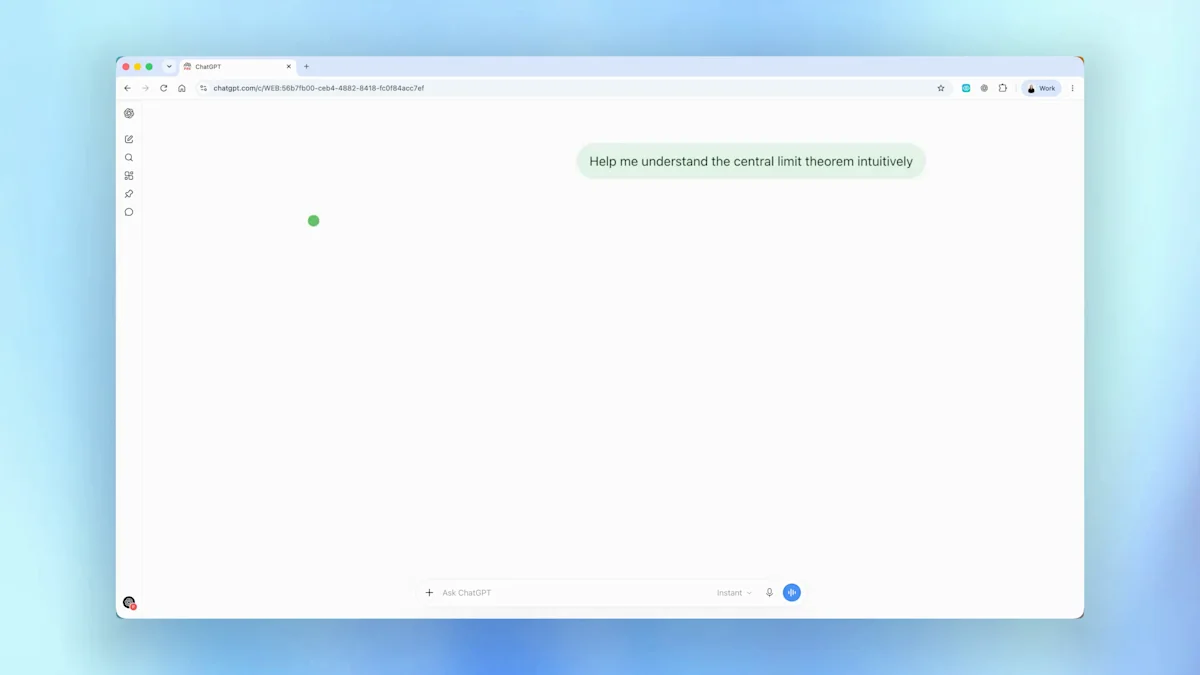
Suggested teaching prompt:
Explain the central limit theorem for an introductory statistics student. If supported, show an interactive visualization comparing a population distribution with a distribution of sample means. Let me vary sample size, explain the assumptions and label what each graph represents. Ask me to predict a change before revealing the explanation.
Check the assumptions and labels against your course material. Do not use the shape of a generated picture alone as proof of the theorem.
Use GDP Diagrams to Organize an Explanation
The official GDP example shows another learning use: organize a complex idea so the reader can follow its parts. For a lesson, choose one question, such as the difference between the size of an economy and changes in its output.
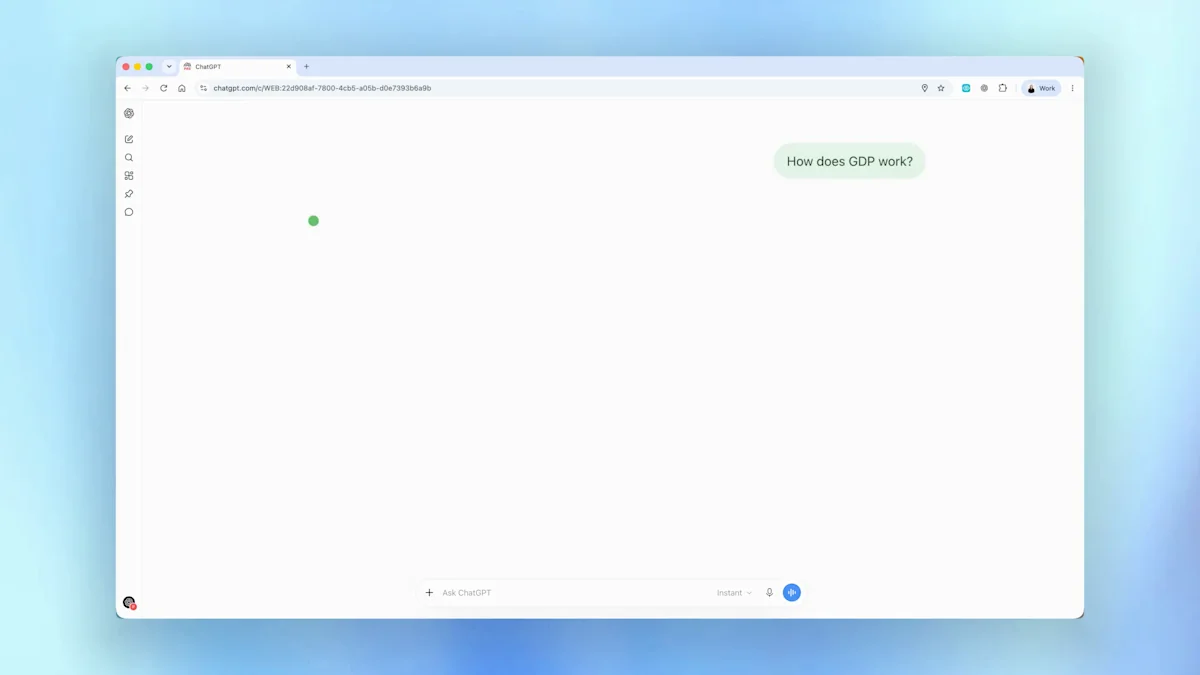
Explain GDP to a secondary-school student using a labelled visual summary if supported. Distinguish nominal and real GDP in plain language. Use a small fictional dataset, clearly mark it as fictional, and ask two questions to check understanding. Do not present invented numbers as current national statistics.
For real-world country comparisons, supply a dated official dataset and its units. See the charts guide for preparing data and choosing a format.
Teach Probability with the Monty Hall Example
OpenAI also publishes a Monty Hall demonstration. A useful classroom sequence is to state the game rules, make a prediction, explore outcomes and explain the reasoning in words.
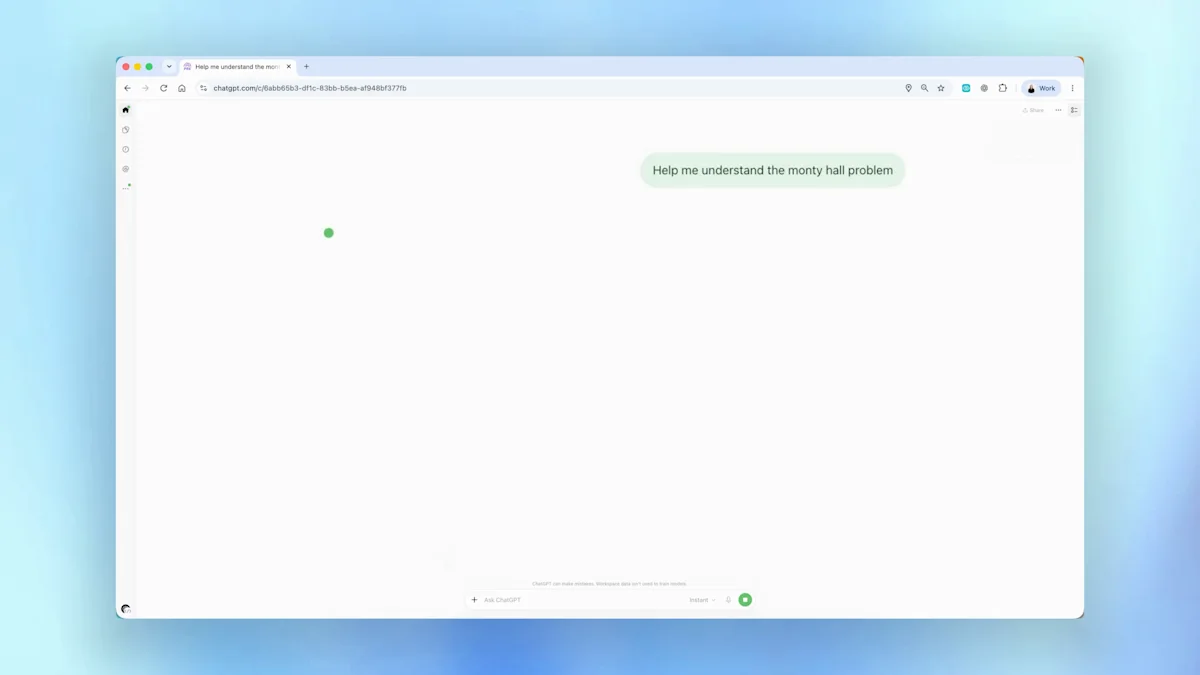
Teach the Monty Hall problem with an interactive three-door example if available. State exactly how the host chooses a door and that the host knows where the prize is. Let me compare staying with switching, then explain the reasoning. Keep a readable text explanation available alongside the visual.
A simulation can help explore an idea, but the rule assumptions and explanation still matter. Ask learners to explain why changing the host’s behavior changes the problem.
Create a Study Guide and Interactive Quiz
A study guide can organize the material; a quiz can check whether the learner can use it. Ask for feedback after a choice, not just a list of questions and a hidden answer key.
Create a study guide from the lesson notes I provide, then a five-question interactive quiz in this conversation. Ask one question at a time, show a short explanation after my answer and track progress. Use only the supplied notes, identify any ambiguity, and let me restart. Match the language to an introductory learner.
This is a suggested recipe. Our solar system quiz page provides a separately tested prompt, real ChatGPT captures and a website demo.
A Practical Workflow for Teachers and Learners
- Choose a learning goal that can be checked: explain a relationship, compare two cases or apply a rule.
- Provide the topic, audience level and source material. State which values are real and which are illustrative.
- Request a useful interaction and a text explanation. A visual should support the lesson rather than replace it.
- Review the generated content, controls and answer key before sharing.
- Ask the learner to predict, change one input and explain the result.
OpenAI’s earlier math and science learning announcement is related background. This page focuses on the GPT-6 Intelligent UI launch examples and does not claim that every education feature belongs to the same release.
Frequently asked questions
How can teachers use Intelligent UI for education?
Use a visual explanation as the starting point for prediction, exploration and discussion. Ask learners to explain what changed, then check their understanding with a short question or quiz.
Are the education prompts official OpenAI transcripts?
No. The diagrams and demo topics are attributed to OpenAI. The teaching prompts on this page are suggested recipes written by this independent guide.
Is every generated quiz correct?
No. Review the question, answer key, explanation and audience level before using a quiz with learners. An interactive control does not establish factual accuracy.
Is Intelligent UI the same thing as Study mode?
They describe different aspects of ChatGPT. This guide focuses on visual and interactive responses; the prompts here do not require or claim to activate Study mode.
Official sources
Keep exploring
- Try our tested solar system quiz
- Choose a chart for a learning task
- Copy tested Intelligent UI prompts
- Understand the feature and its limits
- See tested and official demonstrations