Before you begin
Intelligent UI lets ChatGPT combine a written answer with visuals and controls you can use in the conversation. Open ChatGPT on the web and start a new conversation in Chat. Our test used High reasoning and an English interface.
You can first try our website calculator to understand the interaction. It is an independent demo, not an embedded ChatGPT session.
Check access before changing your prompt
OpenAI’s October 7 release notes say the rollout began for Plus, Pro, Business and Enterprise, with Free and Go starting October 8, 2026. Enterprise access depends on workspace admin settings. A rollout start date does not mean every account has access immediately.
Use Chat rather than Work or Voice. Instant through Extra High reasoning supports the feature; the Pro reasoning option does not. See the official Intelligent UI help page for current limits. This walkthrough was tested on the web; we have not verified the same flow in mobile apps.
For the feature’s definition and generation process, read what Intelligent UI is.
Step 1: Prompt ChatGPT for an interactive tool
Paste this exact prompt. It names the inputs, starting values, language and live result. Asking for interaction directly in the conversation made the intended output explicit.
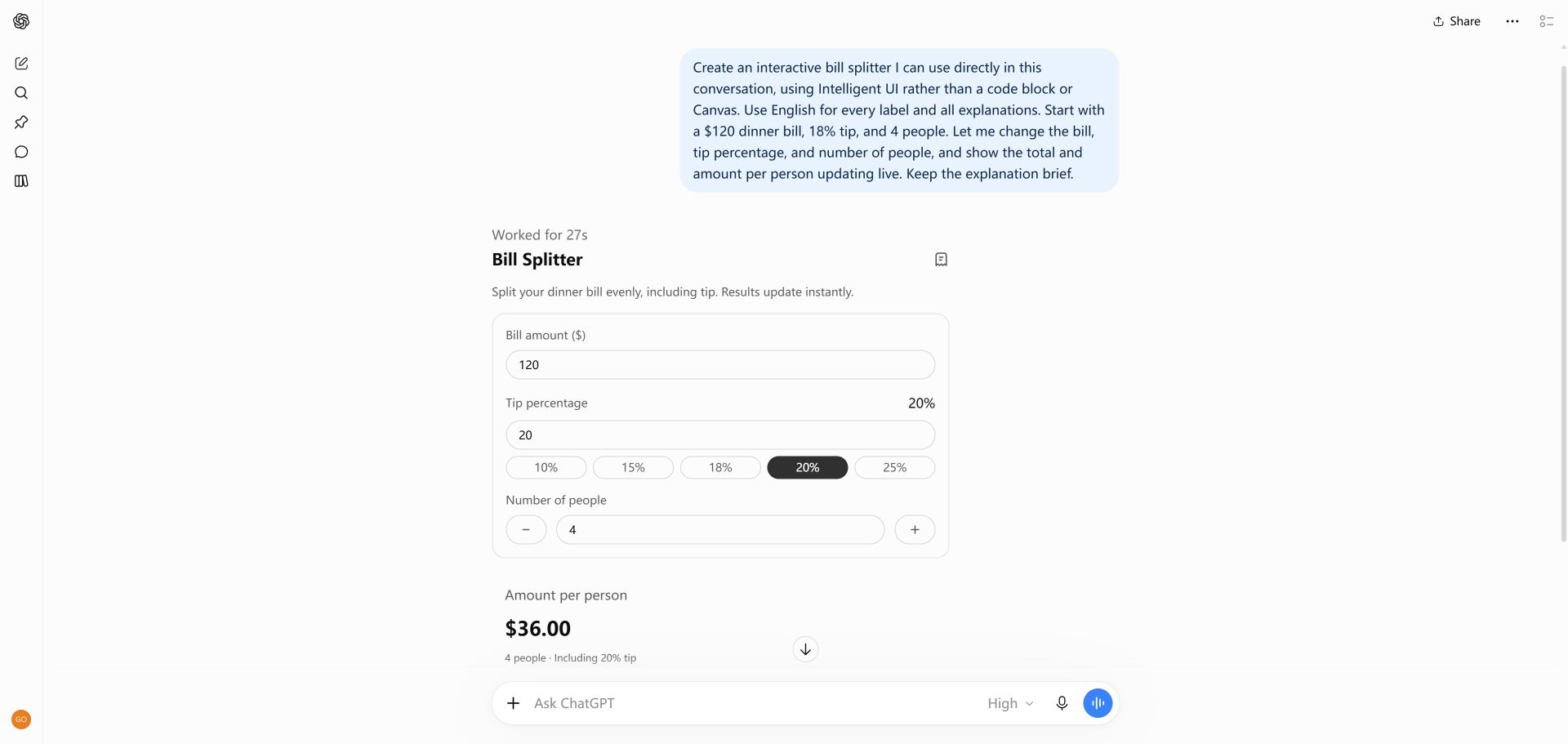
Create an interactive bill splitter I can use directly in this conversation, using Intelligent UI rather than a code block or Canvas. Use English for every label and all explanations. Start with a $120 dinner bill, 18% tip, and 4 people. Let me change the bill, tip percentage, and number of people, and show the total and amount per person updating live. Keep the explanation brief.
In our conversation, ChatGPT returned a bill splitter with editable values. At $120, an 18% tip and four people, the total was $141.60 and each share was $35.40.
Step 2: Test the controls and the calculation
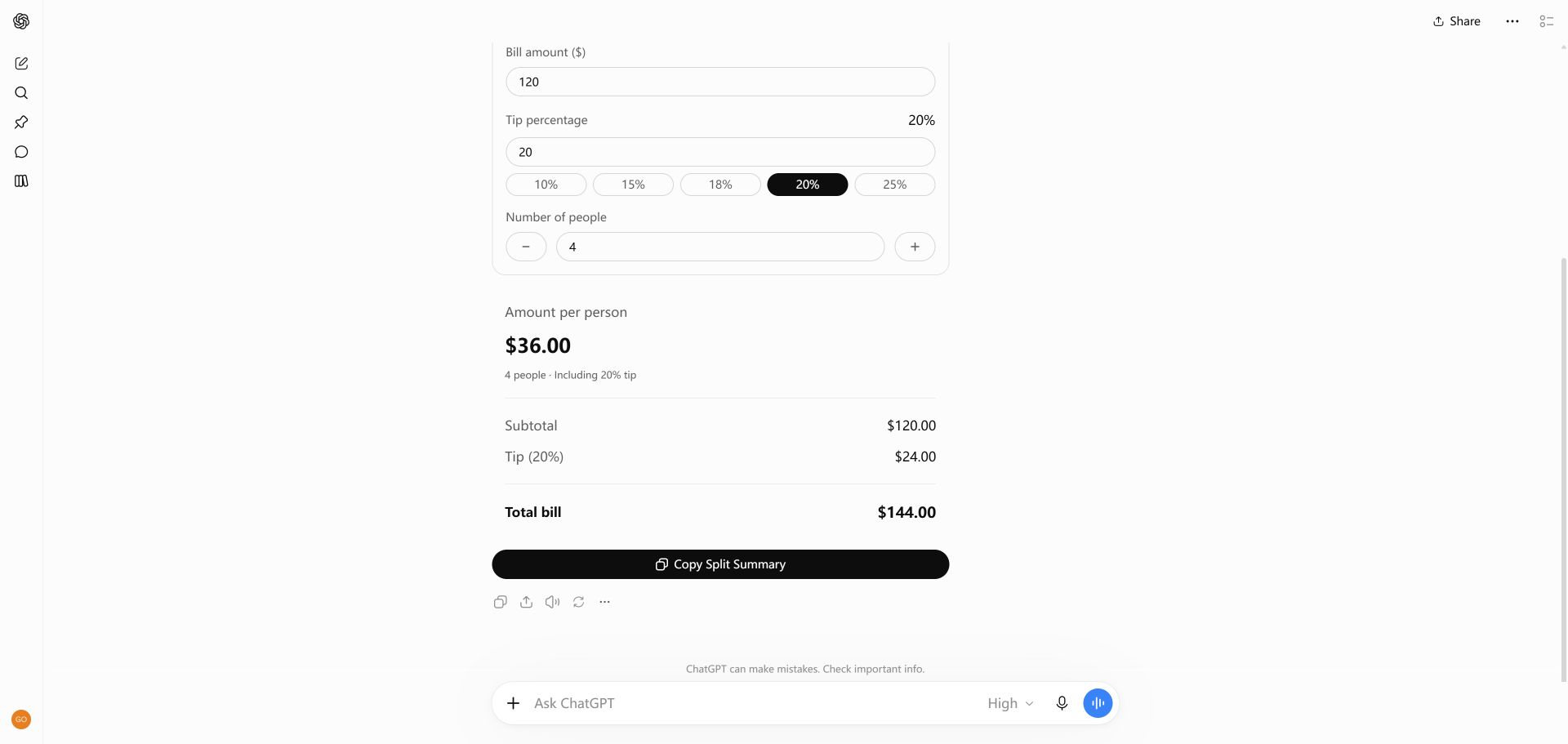
Choose the 20% tip control. We observed the total change to $144.00 and the share to $36.00. You can verify it: $120 × 1.20 ÷ 4 = $36.
Next, test your own result with an empty bill, zero people and a decimal amount. Those cases were not part of our original ChatGPT capture; use them to discover where your generated version needs refinement.
Step 3: Refine the result with a follow-up prompt
Describe the problem you observed, rather than asking ChatGPT to “make it better.” A useful follow-up might be:
Keep the current layout. If the number of people is zero or blank, show an English validation message instead of calculating a result.
This is a suggested refinement, not a separately tested recipe. Repeat the same failing input after the change to check that it helped.
Intelligent UI troubleshooting
If access, loading or device problems persist, use the full Intelligent UI troubleshooting guide for iPhone, Android and web checks.
Frequently asked questions
Why did ChatGPT give me a text answer?
ChatGPT chooses a format for the task. Ask for a specific input and an output that should change when you use it. Also check that you are in Chat with a supported reasoning setting. A prompt cannot guarantee an interactive response.
I got source code or a Canvas. What should I try?
Clarify that you want controls usable directly in the conversation, then check feature availability. A prompt alone may not enable Intelligent UI if your account, workspace, client or reasoning option does not support it.
What should I do if a control does not respond?
Describe which control failed and the values you entered. Check the visible state before retrying, and verify important results independently. Our quiz test showed an action error even though the next question appeared.
Can the example form collect real signups?
No. The tested form is a simulation and does not create a production signup service. Use synthetic information while learning; collecting real data requires separate storage, delivery and consent arrangements.
Will my result look exactly like the screenshot?
No identical layout is promised. The screenshots document one account and one test date. ChatGPT behavior and availability can change.
Choose your next project.
For more calculation rules, explore OpenAI’s itemized ChatGPT bill splitter or the retirement savings calculator and prompts.
Try the workshop form for validation and review, or try the solar system quiz for feedback and progress. Both include their tested ChatGPT prompt.
Compare all three Intelligent UI examples, or copy another recipe from the Intelligent UI prompt library.